





Efficient solutions arise from growing customer relationships

We stand for that!

Latest News

  • 1
  • 2
  • 3
  • 4

Global Net FX - Query Module


The Query Toolset provides tools to query data with predefined functions. Check the Query Toolset to enlarge the hidden tools.
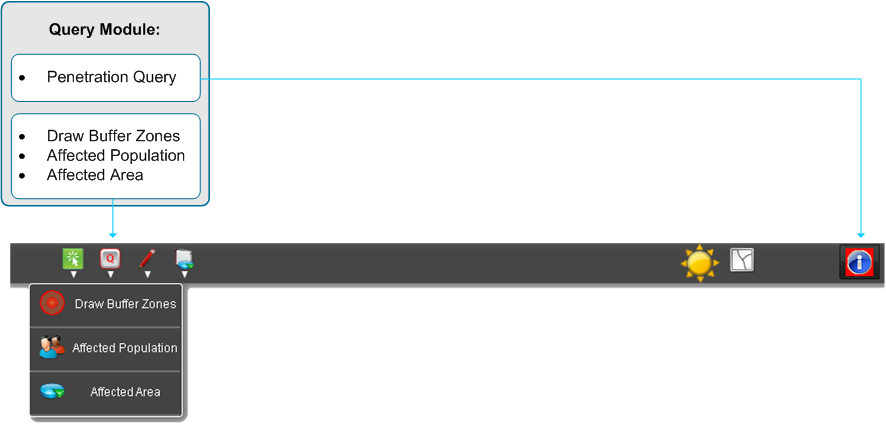
 

QueryModule


  • One of the basic functions to get information about desired features or layers is the so called Penetration Query, hiding an identifier
  • Draw Buffer Zones enables to draw buffer graphics around features
  • Affected Populatation informs how many citizens are within a desired area
  • Affected Area informs about shared area of input polygons with other layer


Penetration Query


The Penetration Query Tool is a standard identifier for features. All results will be structured in a treeview like in Windows Explorer. Identifiable are all visible features on map.

Click the toggle button in the user interface to activate Penetration Query. Than click on the feature you are interested. The Penetration Query remains active till deactivation through another click on the toggle button.

The identifier window includes on left hand the navigation with the layer and associated features and on the right hand the information about the selected object. A special feature within the Penetration Query represents the attachments. If available it will be displayed within this window. Attachments could be a photo, video or document and will be shown as a thumbnails list according to the ESRI samples.
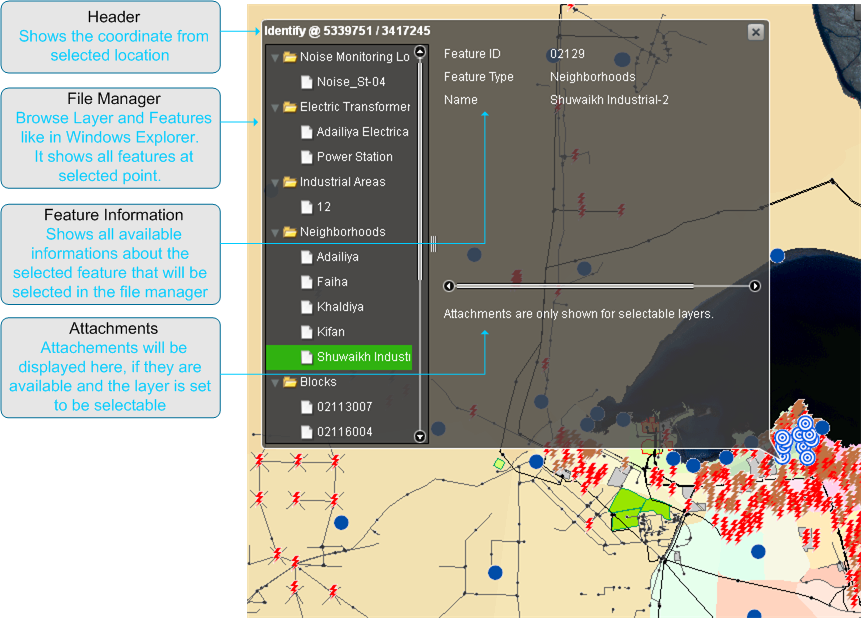
identify

(Note: Attachments are only shown for selectable layers.)


Draw Buffer Zones


Within this tool, the user is able to draw a variety of radial buffers graphics around the same or different features. Doing this, the different buffers can overlay another but can be made visible through different settings. For each buffer the buffer distance, colour and transparency can be selected. The transparency allows the visibility for the underlying layers, features or buffers.

The resulting buffer remains till the user clicks the Remove-Buffer-Button.
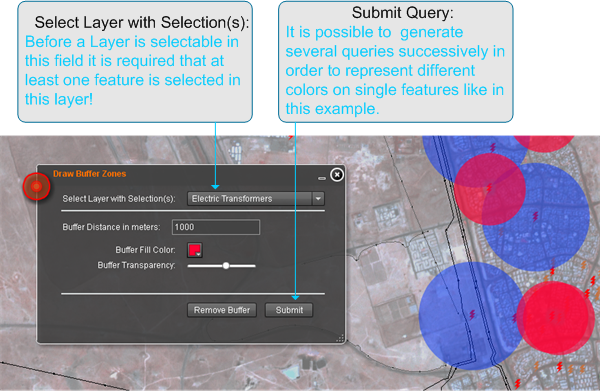
DrawBufferZones


Affected Population


The Affected Population Tool is able to calculate the sum of involved citizens from a defined area at any event.

To start with, select one feature of a polygon layer or trace the desired area. The result is the number of affected people that will be display afterwards inside the defined areas. These number varies by choosing on of the predefined population layers. By choosing Remove Result the drawn polygon and of course the results will be removed from mapdisplay.

The following settings will show an usecase with the associated result.

AffectedPopulation

Global Net FX - Selection Module


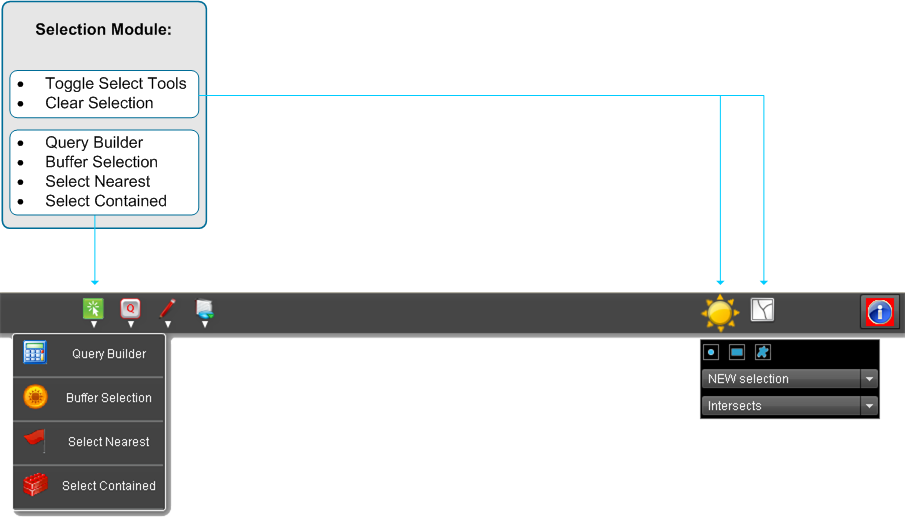
The Selection Module provides various tools to select features directly by mouse actions or as result of a query. Selections can be used for further processing or as input for other tools.


SelectionModule

  • Select by Mouse e. g. click on a feature, or select by a rectangle
  • Query Builder provides select by attributes
  • Buffer Selection queries one or more layer and select features in a user defined distance around a given selection
  • Select Nearest searches one or more layer and select the nearest feature to the input feature.
  • Select Contained searches one or more layer and select all features completely within the area of a given polygon.


In detail


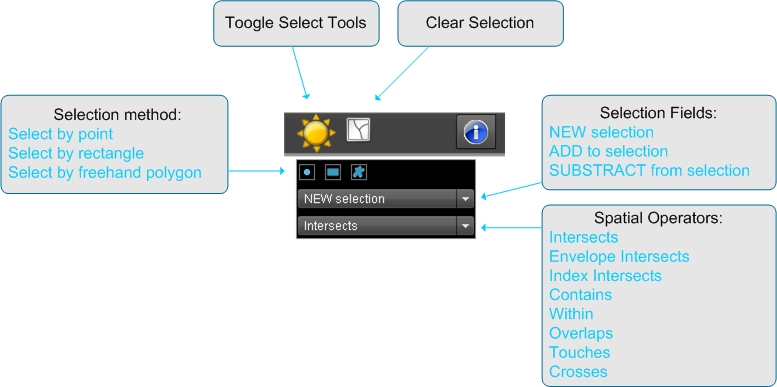
Select by Mouse - Toogle select tools

Select by Mouse, also called Toogle select tool, combines a variety of ways to actively select features in the map, like picking a single feature, or selecting one or more features within a drawn rectangle. De-selection functionality is also provided.

ToggleSelect


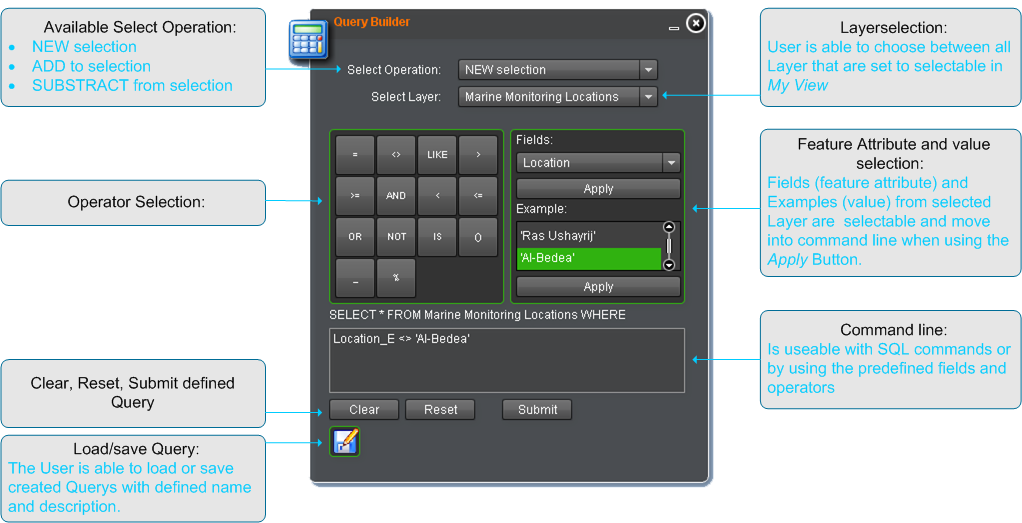
Query Builder

The Query Builder, known by desktop GIS users, provides an easy way to build an attribute criteria based search string. Results could be added or substracted from previous selections. The selection can be variied by usual operators like +/-/</>/and /or/ not. To create the query select one of the fields and click apply, select the operator and than select the value and click apply. It is possible to edit the SQL string by hand in the command line of the Query Builder. Submitted queries follows in a resultwindow that inform the user about the number of hits. Moreover the features are selected and marked. Also here, there is the possibility  to save and load the created queries in order to retrieve the settings again.

QueryBuilder


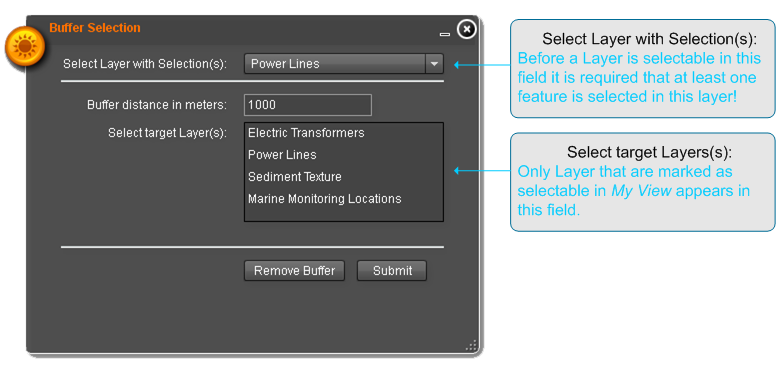
Buffer Selection

The Buffer Selection tool provides the functionality to select features that reside in a calculated distance around a given selection. Select a layer with one or more selected features and enter the distance for search. Than select the target layer(s). Note that only layer marked as selectable in MyView are listet. The application will calculate regions with the radius of the given distance around every selected feature. This regions were used to select features in the target layer(s). Existing selections in the target layer(s) outside of the buffer will be removed. The resulting buffer remains till the user clicks the Remove-Buffer-Button.

BufferSelection


Select Nearest

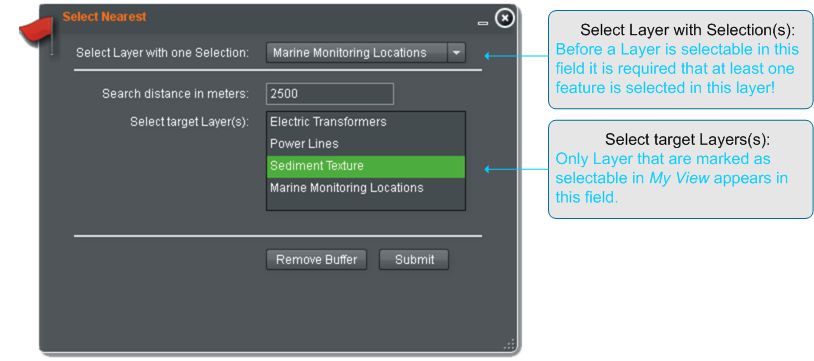
Selects Nearest searches in one or more layers for the nearest object within a typed radius starting from a preselected feature. It is possible to search in multiple layers but results nevertheless in a single selected feature. The nearest feature from all target layers. Select a layer with one selected feature and enter the distance for search. Than select the target layer(s). Note that only layer marked as selectable in MyView are listet. The resulting buffer remains till the user clicks the Remove-Buffer-Button.

SelectNearest


Select Contained

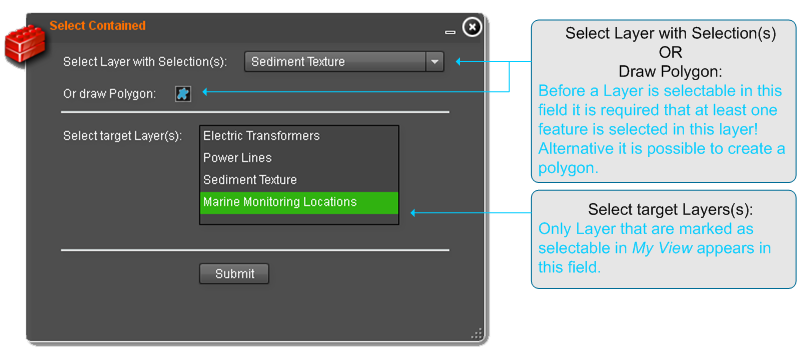
Select Contained makes a spatial query to select features within the area of a given polygon. The tool provides two ways for selection. One way is to select one or more polygon features in a layer and set this layer in the "Select Layers with selection (s)" field. Than choose the target layer(s) and click submit. Note that only layer marked as selectable in MyView are listet. The other way is to draw a polygon with the draw tool in the widget before submitting the query. In both cases all features that are within the area of the polygon will be selected. Existing selections in the target layers outside this area will be removed.

thumb SelectContained

Global Net FX - Layer Manager


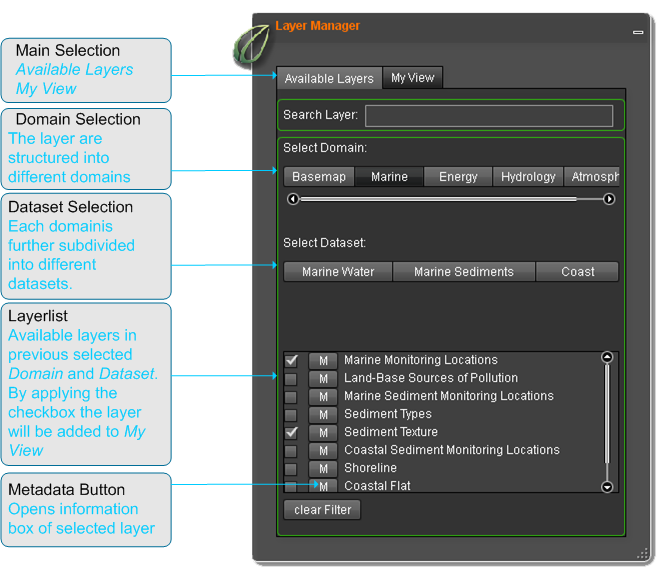
Layermanager availableLayer

The Layer Manager is one of the most complex tool. It can be understood as a highly configurable TOC. Two separate presentations enable the user to display all available layers, select layers he is interested in and combine them to a set he will be working on afterwards.

The first presentation will be referred to as Available Layers. It lists all layers that are available to the currently logged in user. The layers are categorized into so-called datasets (group layers) and domains.

The first and most important step to perform analysis or views is the selection of layers. To find the best appropriate and available layer for your map the layers are categorized into domains and datasets. For each layer you can show metadata information. In addition you can search metadata for name or text in description.


In detail

A domain could be: basemap, marine, energy, hydrology, atmospheric, Industrial. The available layers within the domains are depending on the rights of the useraccount. Usually the layers are shown in white font. When a layer appears in yellow color it means that this layer have had a problem to load. If you add such a layer to map, the system tries to load the layer again. If the yellow color is persistent, the layer is not available at present.


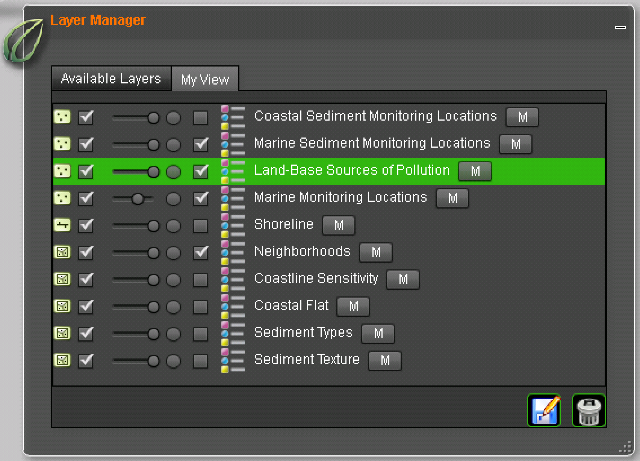
My View

The second presentation is named MyView. In the MyView perspective the user has his own choosen subset of layers. He can  setting transparency or visibility on single layers and arrange the layers in the map. For each layer, legend symbols and metadata are provided. Furthermore, MyView is the place to determine which layers are selectable and editable by other tools. MyView represents the control- and information center for the added layers. The user is able to select setting for the map layout, get additional information and indicates presets for following processes.

Layermanager myview

Global Net FX - Navigation Module


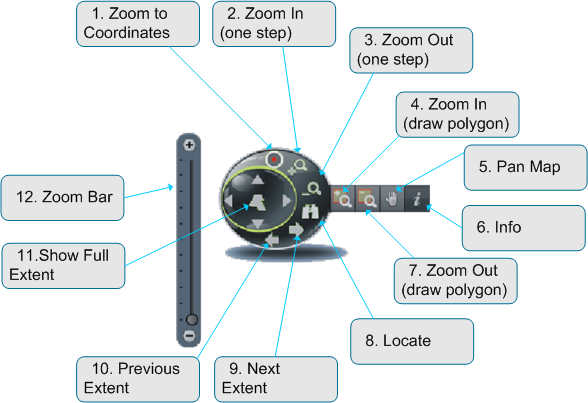
The navigation panel is fixed in the upper corner and subsumes every interaction needed to navigate in a map. Additional the user can move the scalebar pointer in steps up and down to zoom in or out.


navigation panel


  1. Zoom to Coordinate
  2. Zoom In (one step)
  3. Zoom Out (one step)
  4. Zoom In (draw polygon)
  5. Pan Map
  6. Info
  7. Zoom Out (draw polygon)
  8. Locate
  9. Show next Extent
  10. Show previous Extent
  11. Show full Extent


Show Coordinates

Simple tool to continuously display the coordinates of appropriate place as the mouse cursor hovers over the map. The display is always enable, fixed in the lower corner of the map and cannot be removed or turned off. It shows the coordinates (Latitude and Longitude) in decimal degree.


Zoom to Coordinates

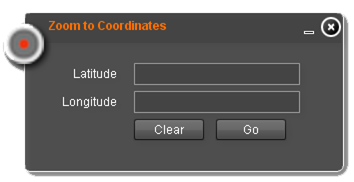
Zoom to coordinate provides an easy way to move the mapcenter to a known coordinate entered by the user. The latitude and longitude inputfields enable the user to quickly insert the coordinate in decimal degree like its shown in Show coordinates. The only difference is that up to 20 fractional digits are possible but not necessary.

Zoom to Coordinate


Zoom to Location

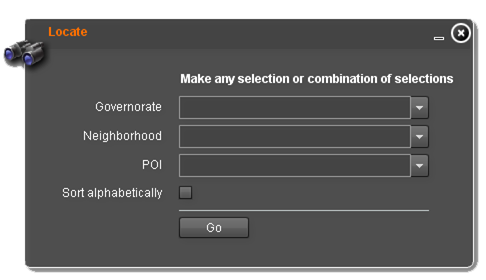
Zoom to Location is implemented into the navigation panel and provides a quick and easy way to zoom to preconfigured set of well-known locations, Hot-Spots or Points of Interest. Three selectionfields are available:
  • Governorate
  • Neighborhood
  • POI - Point of Interest
Zoom to Location

Global Net FX® - ArcGIS Server Flex Solution


gnfx-Viewer

Global Net FX® Viewer is an instrument to display geographical and spatial information. Apart from being a mere viewer of information, it also provides a range of analysis and editing tools. It is developed as an application that is configurable and expandable, and offers multilanguage and cultural support. Additionally, there will be a user management system to define rights and roles, and a logging mechanism, to offer traceability of data changes. The application framework is built on top of a Google base map, which is loaded into the viewer.


Key Features


  • Integration of different applications in one Web-GIS Viewer
  • Configuration and user management via Global Net FX Admin
  • Multilingual user-interface (Arabic, English, German, ...)
  • Fast viewer development
  • Modular programming concept


Global Net FX Layer Manager


Some of our available Modules


Query Manager2
 

why giscon

Independent consultants

GISCON consultants and experts observe and encourage the use of the Open Geospatial Consourtium (OGC) open standards for geospatial content and services, sensor web and Internet of Things, GIS data processing and data sharing.

Proven experience in various industries

GISCON team always includes subject matter experts (SMEs) in the relevant domain of work in addition to the GIS experts. Therefore, we speak the same industry language and fully understand the needs and requirements.

International network of partners and freelancers

GISCON has developed an international network of excellent partners from public institutions, universities, NGOs, freelancer experts and the private sector. Project teams are always composed of the most suitable experts for the problem at hand, regardless if they are GISCON employees or come from one of our partners.

Flexible and diverse supporting models

GISCON offers various levels of engagement with the clients for support with expertise and consultancy services. Depending on the clients' needs, requirements, in-house capabilities and available budget, GISCON has the flexibility to engage, support and be part of the team.

All-around IT Solutions

GISCON provides end-to-end information and communication technology (ICT) solutions and services from one hand. This is extremely important especially in large projects, where GIS is linked to document management systems (DMS), enterprise resource planning (ERP), content management systems (CRM), internet of things (IoT), big data and other relevant systems and technologies.

Continuous research, development and innovations

GISCON believes that the continuous research and development is what enables us to support our clients with efficient and reliable solutions and to remain competitive in a rapidly changing market. Systems, solutions and innovations are tested and applied at our working environment before we implement or even recommend them to our clients.

We use cookies

We use cookies on our website. Some of them are essential for the operation of the site, while others help us to improve this site and the user experience (tracking cookies). You can decide for yourself whether you want to allow cookies or not. Please note that if you reject them, you may not be able to use all the functionalities of the site.